> ## Documentation Index
> Fetch the complete documentation index at: https://docs.koudingvip.com/docs/llms.txt
> Use this file to discover all available pages before exploring further.
# Getting Started — Build Your First AutoCoder App
> A quick start for AutoCoder.cc — the basic steps for creating your first application from a natural-language prompt, signing in, generating the project structure, and previewing the live demo before you deploy.
Register and log in to your AutoCoder.cc account. You can use Google login for quick access. Once logged in, you can:
* **Create** new projects
* **Edit** generated applications
* **Browse** community projects
* **Manage** projects in the **Workspace**
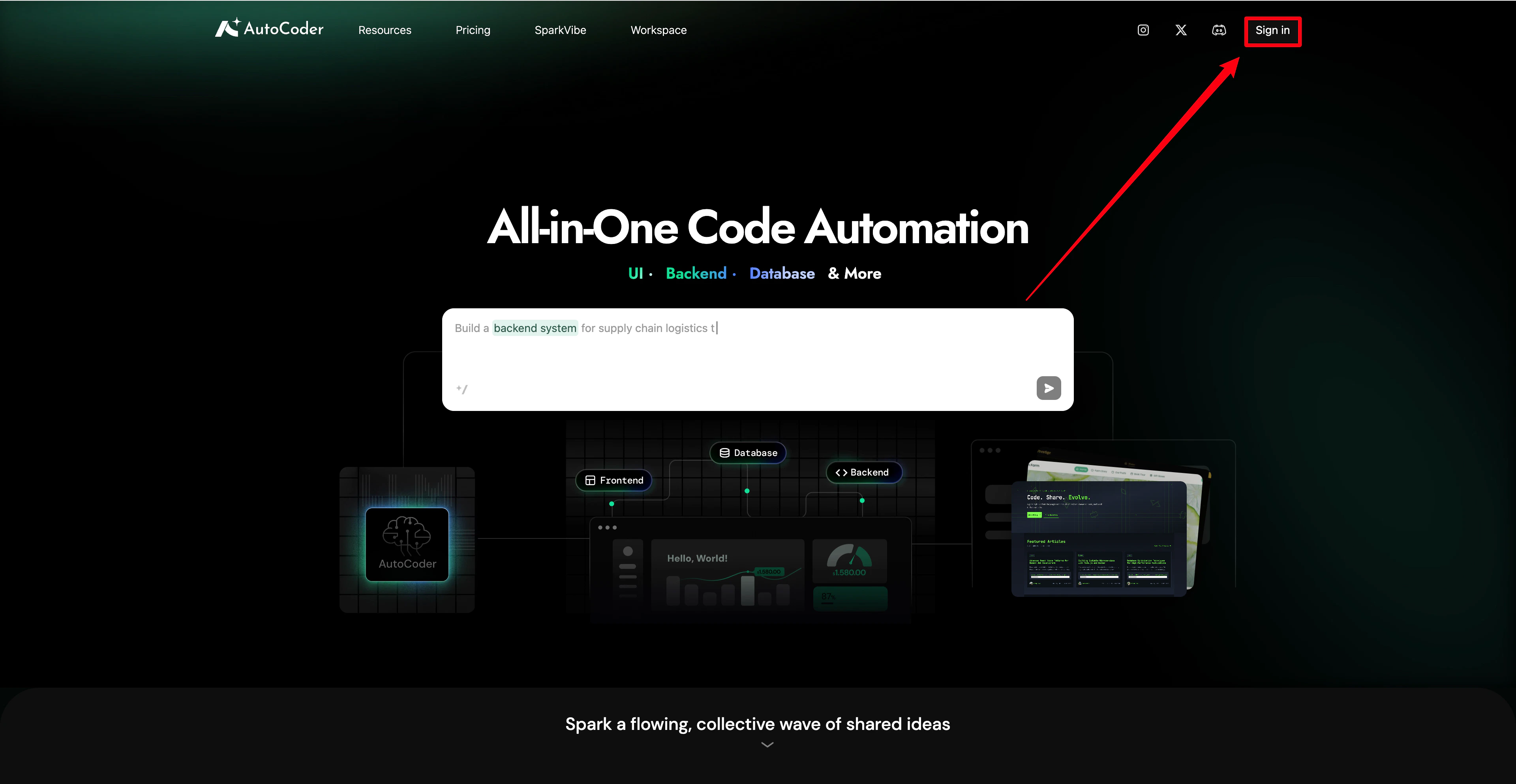 After logging in, you will enter the AutoCoder.cc homepage. In the input box, describe the application you want to create. For example:
* "Create a restaurant website"
* "Build a landing page for a product"
* "Create a task management app"
AutoCoder.cc will analyze your requirements and generate the application structure.
After logging in, you will enter the AutoCoder.cc homepage. In the input box, describe the application you want to create. For example:
* "Create a restaurant website"
* "Build a landing page for a product"
* "Create a task management app"
AutoCoder.cc will analyze your requirements and generate the application structure.
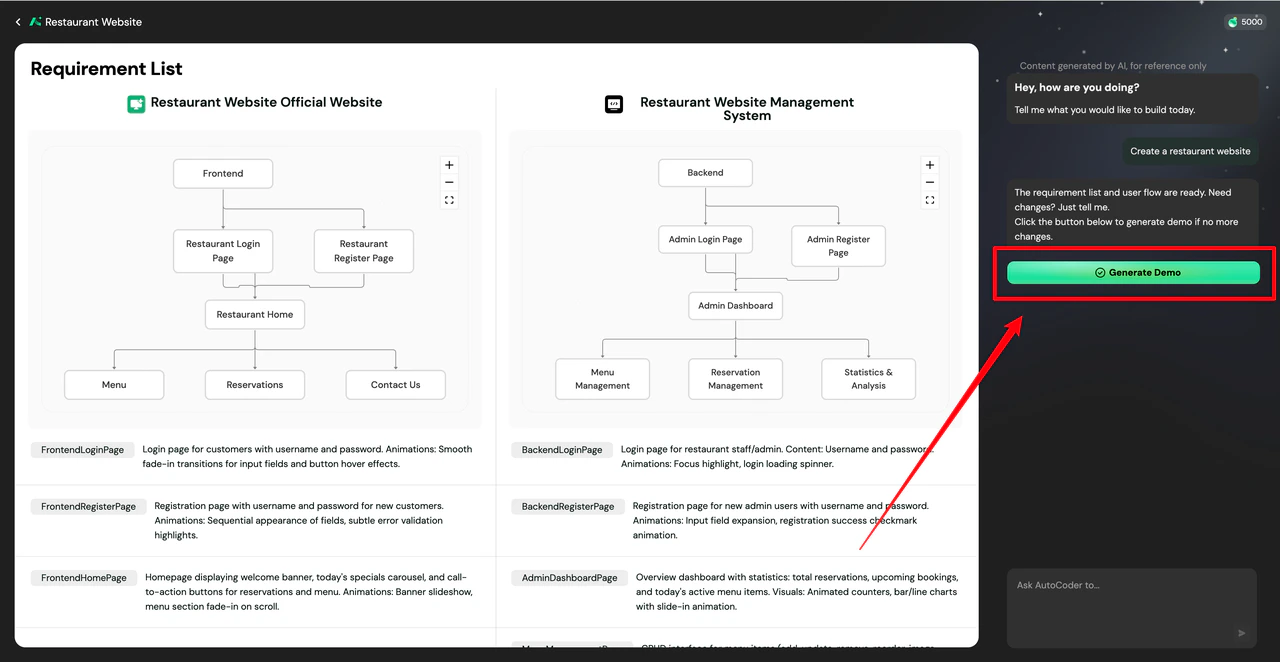 Click **Generate**, and AutoCoder.cc will automatically create the application demo. The demo is built accurately based on your **Requirement List**. If you need to adjust the requirements, simply tell the AI in the input box.
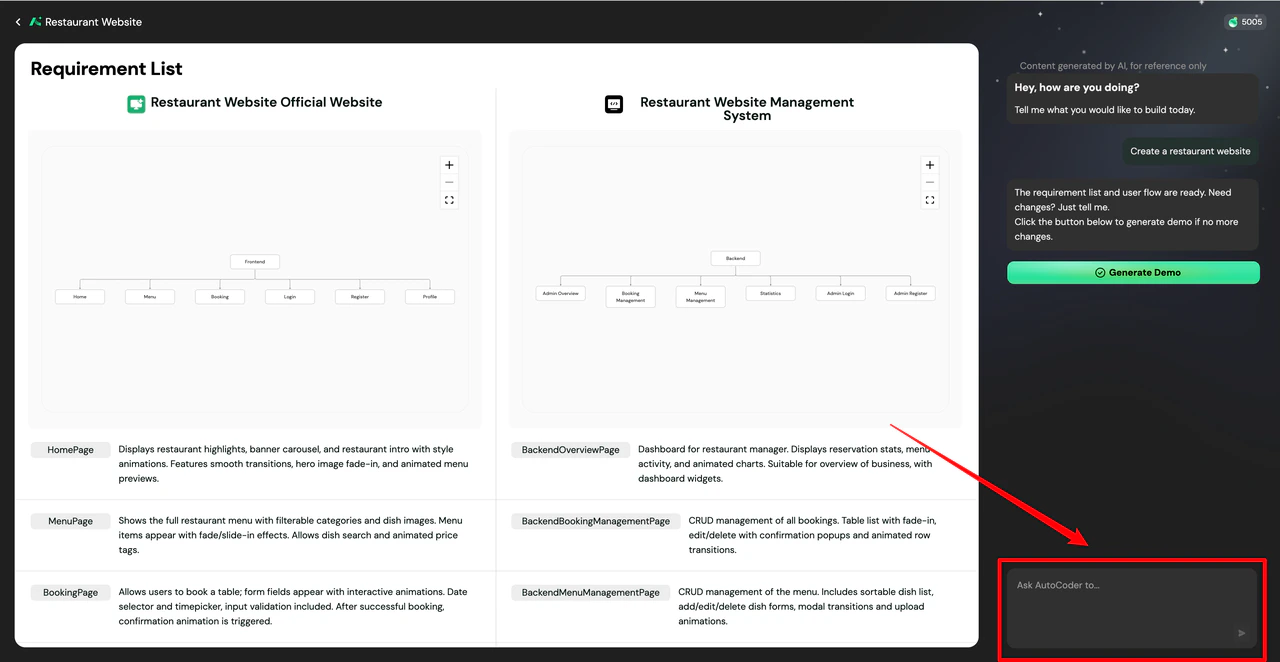 The generated content typically includes:
* Page structure
* UI layout
* Basic functional logic
Within minutes, you will see your application prototype.
The generated content typically includes:
* Page structure
* UI layout
* Basic functional logic
Within minutes, you will see your application prototype.
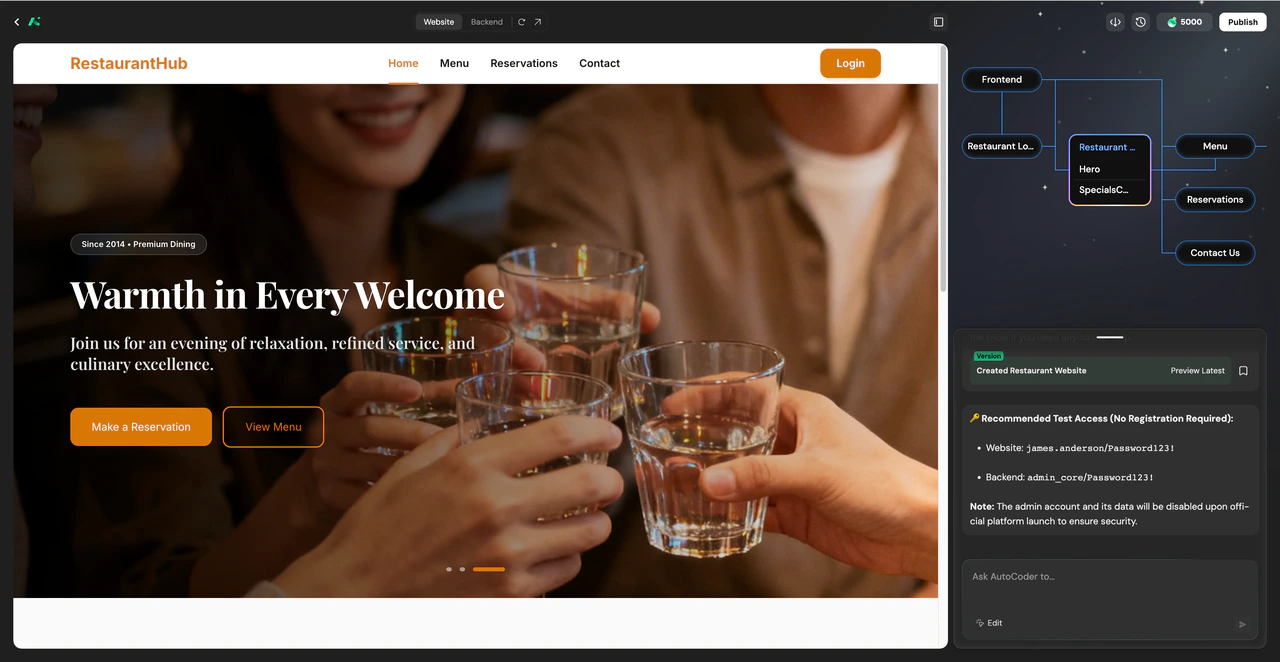 After generating the project, continue to optimize your application through AI chat. You can:
* **Add** new pages
* **Modify** page structures
* **Update** functional logic
* **Optimize** content and layouts
AutoCoder.cc will update the project in real-time based on your instructions.
After generating the project, continue to optimize your application through AI chat. You can:
* **Add** new pages
* **Modify** page structures
* **Update** functional logic
* **Optimize** content and layouts
AutoCoder.cc will update the project in real-time based on your instructions.
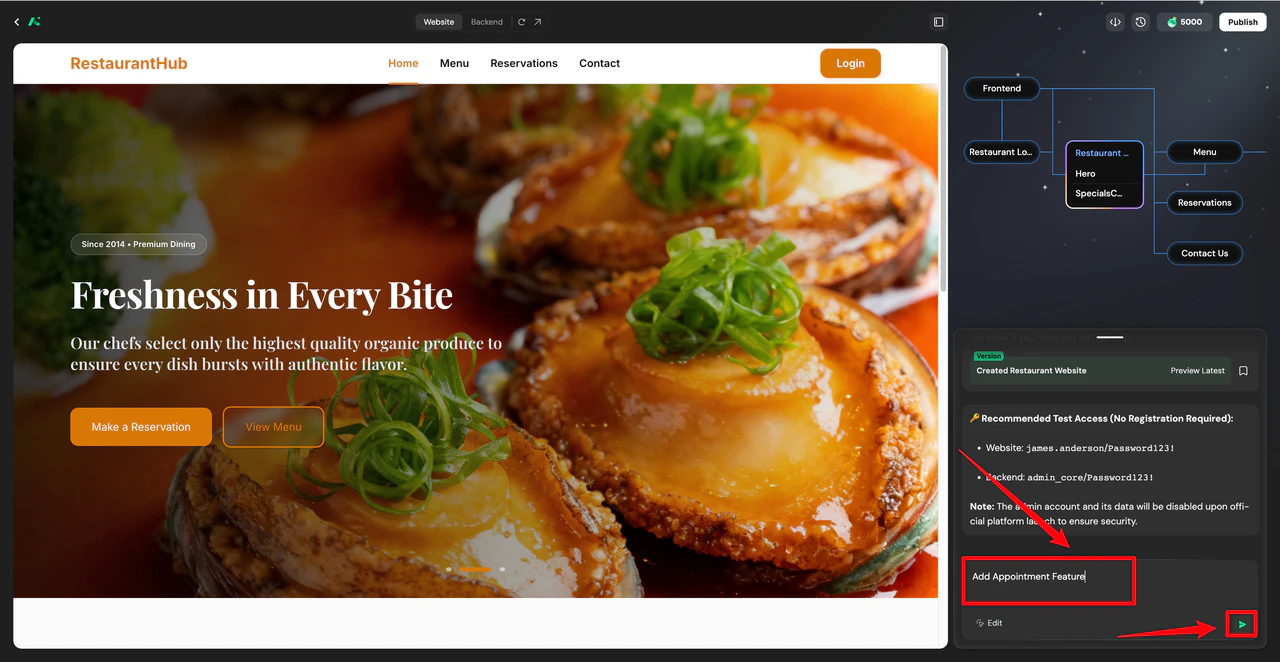 Once your project is generated, explore more features:
* **Edit** page components
* **Modify** page content
* **Browse** **SparkVibe** community projects
* **Publish** your applications
These functions are introduced in detail in the **Features** section.
***
## What to read next
If you have completed your first project, you can continue exploring:
Explore AutoCoder.cc's full capabilities to learn how to edit and optimize your applications.
Find answers to common questions and troubleshooting solutions.
Once your project is generated, explore more features:
* **Edit** page components
* **Modify** page content
* **Browse** **SparkVibe** community projects
* **Publish** your applications
These functions are introduced in detail in the **Features** section.
***
## What to read next
If you have completed your first project, you can continue exploring:
Explore AutoCoder.cc's full capabilities to learn how to edit and optimize your applications.
Find answers to common questions and troubleshooting solutions.